

Boxcutter has received an update as part of our continuation of the 2.79 series.
It is with great pleasure that I release Boxcutter 688: GhostScythe. There were quite a few new additions and refinements to classic ones.
Even with 2.8 on the horizon it is our goal to continue as normal until the future of Blender is ready and stable. With modifiers present we are on our way but there are still some missing items.
Without further ado let’s begin.
The top file on the market is the latest. The top file is always the latest. The files below are always legacy support going back a couple of versions.
It is also worth noting that Buildbot appears to no longer have Carve present as a boolean solution. As a result the hard mode Bmesh may be the only algorithm going forward. But Carve will be missed.
RedFrost has been a new member of the team this release. AR continues to be the shadow boxmaster enigma. RF is special because he does my ideas even if they make no sense. AR is special because he’ll make an idea make sense and take it so far I don’t even recognize the core. Hard Ops / Boxcutter is nothing without the team so rest assured they were compensated for their efforts and continued contributions.
Installation
___
Shift Mod Live
While drawing a box if you hold shift the box will be kept live. This is essential for situations where you want to cut but decide mid cut you want to keep it live.
Try it out! Hold shift while drawing a red box. It will remain live, allowing you to edit it after the fact.

Multi Object Cut
This was a big feature addition and one that really adds to the BC experience. With multiple objects selected you can now cut them with Boxcutter.
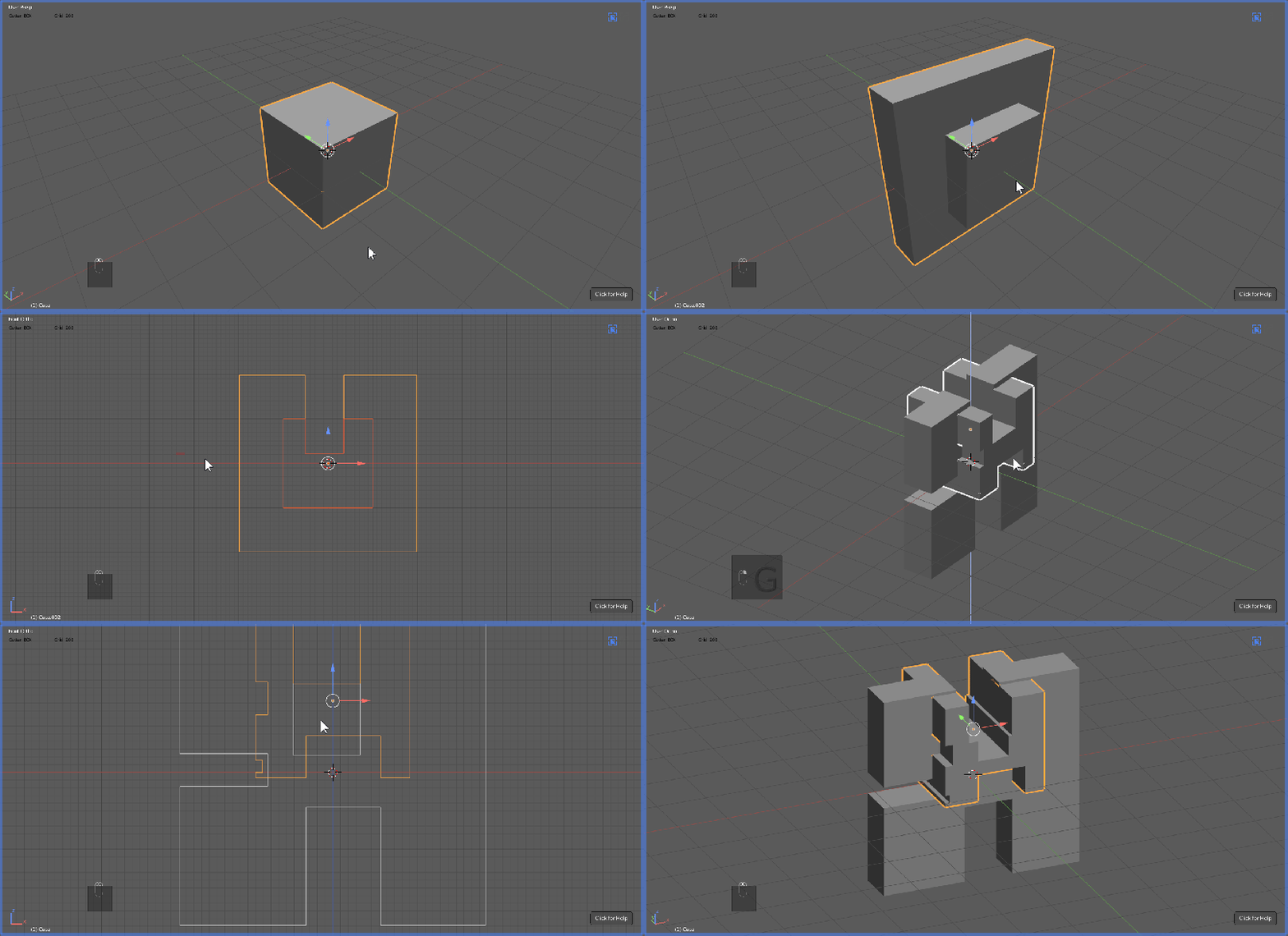
Also slicing is supported.

Now Boxcutter can live up to its name and Slice and Dice with multiple objects.
Edit Mode Cutting
Now edit mode supports all cutters instead of just blue.

In edit mode if you press X , Z or A the type of box will be changed.
This is another feature I am very excited about and am happy to announce is a part of Boxcutter. So cut anytime… anyplace.
*some conditions apply
Circle: Center Cut
While drawing a circle the center can be toggled to spawn at the 3d cursor with D.
This is useful for times where the circle has to be in the perfect center with 3d cursor precision.
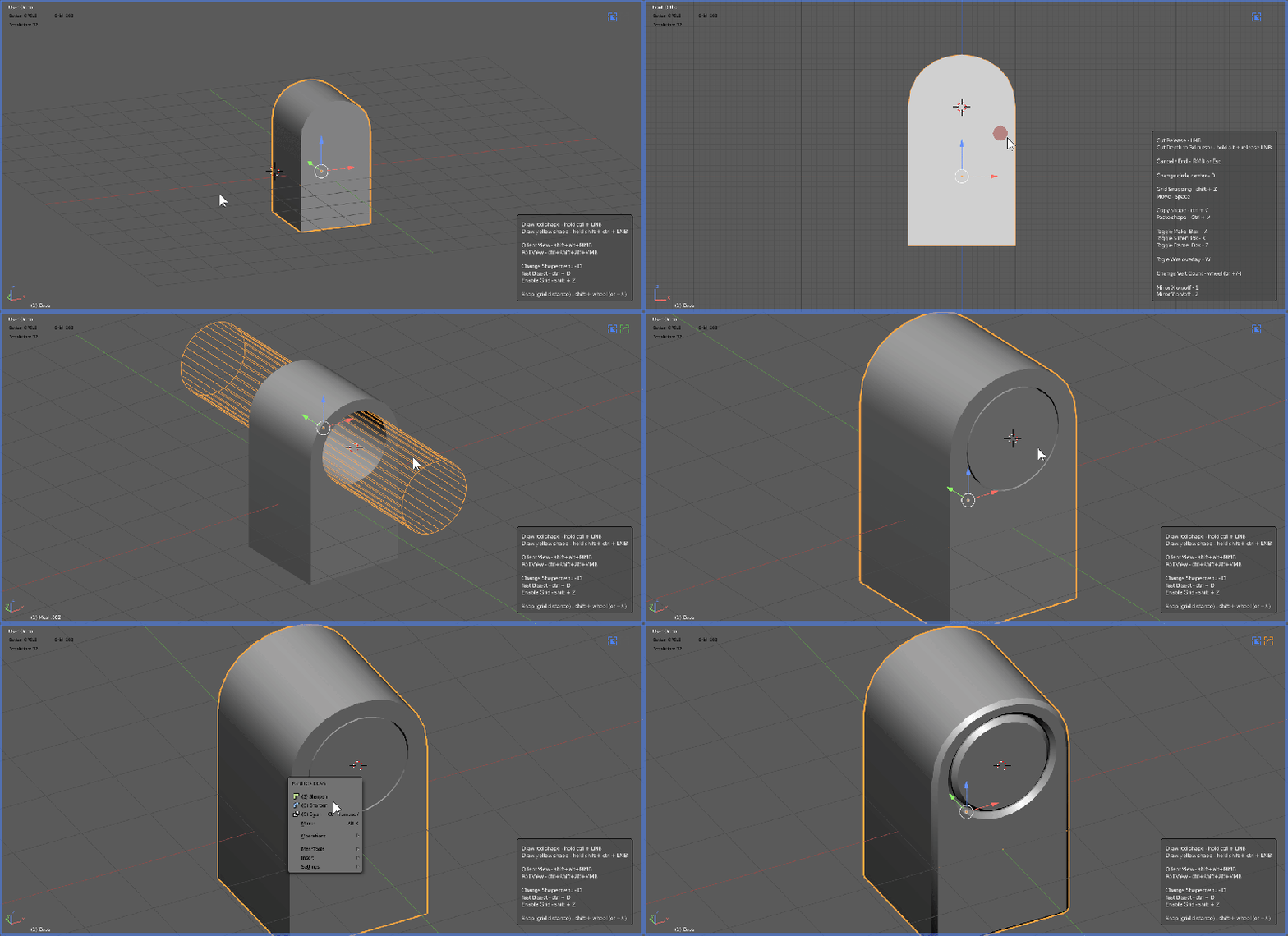
This feature was a personal long time request of mine and am glad to finally have it in Boxcutter.
Custom Depth: V1
Too long have we been restrained by the 3d cursor when cutting to depth. How would you like a constant depth?
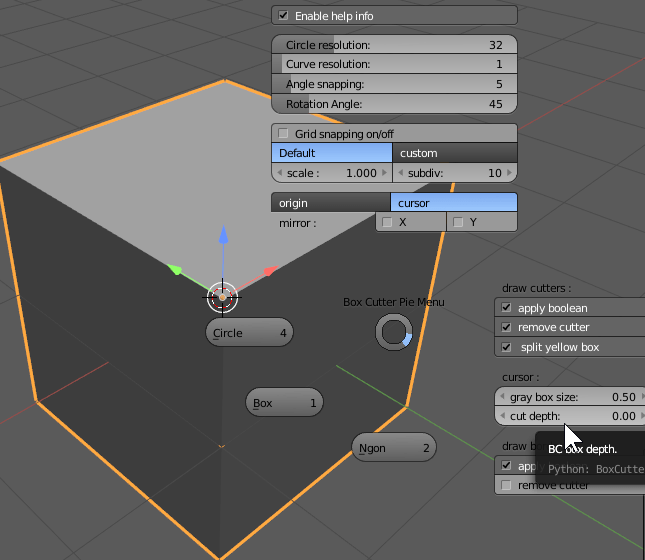
Cut depth is in the D menu and will allow you to use the 3d cursor differently than before.
In the old version cutting to depth was done by using the cursor as the depth indication.

The previous mode is still viable and usable however cut depth changes the approach a bit. The goal was constant cutting without realigning the 3d cursor.

Help System Improvements
Thanks to CGcookie our help system has improved. As a fan of retopo I always had my eye on their help and wanted to try something dynamic with it in BC.
Right clicking the help box closes it. The help box is also a good indicator of BC being activated.

RMB was used to prevent from accidentally moving the 3d cursor. This might be toggle-able in the next version.
You are also able to fine tune the corner and padding.
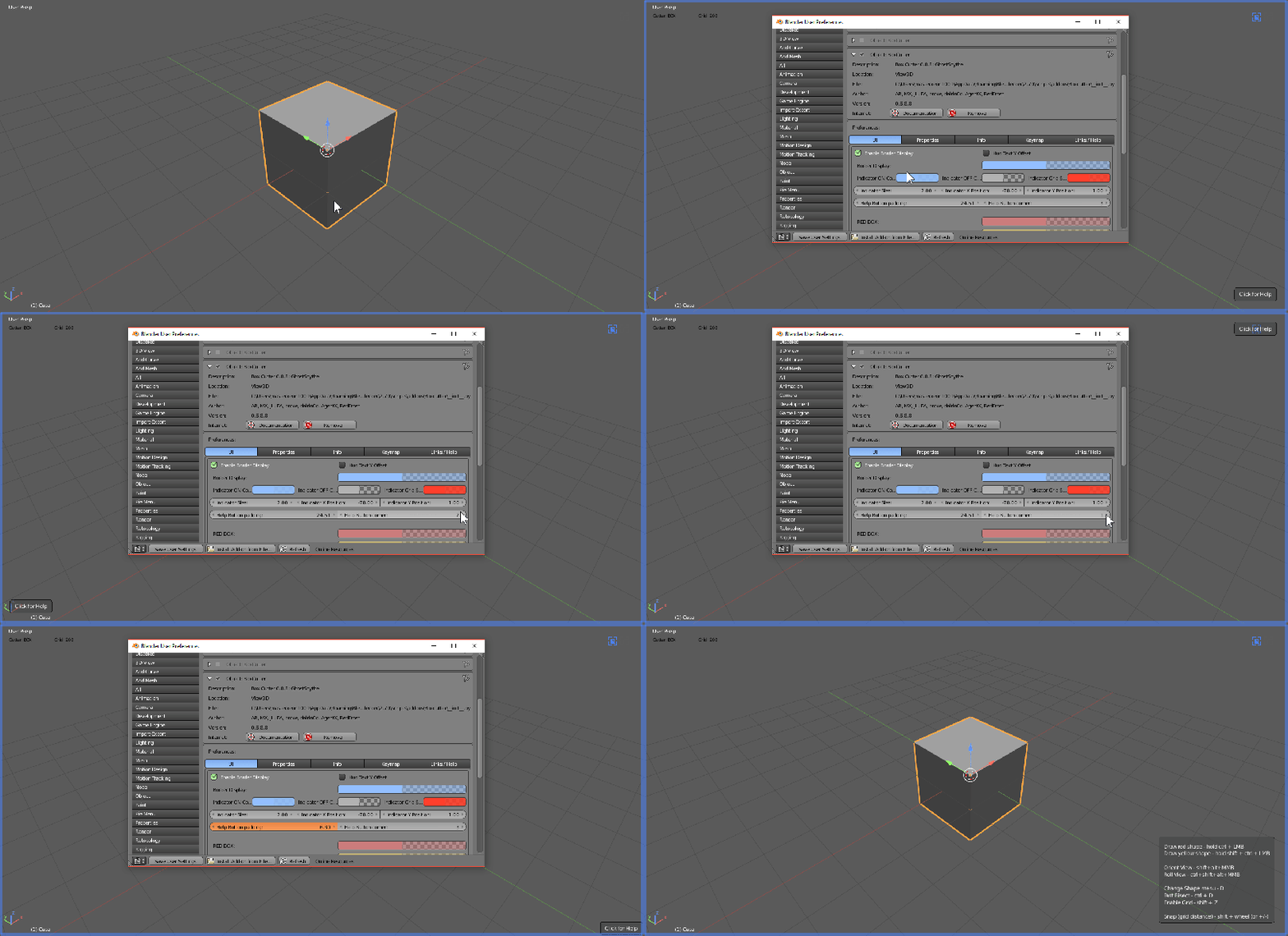
*some users have been reporting issues with this so a bugfixed has been pushed as the file at the top Boxcutter 0688 (zip). So this should be resolved.
Right Click Logo Snapping
Being able to toggle snapping without the D menu was an objective for touchscreens.
Right clicking the BC logo will turn it red. When the logo is red snapping is enabled. Hopefully in the future it will expand to cycle between grid and custom snapping but this was a final touch that was requested.

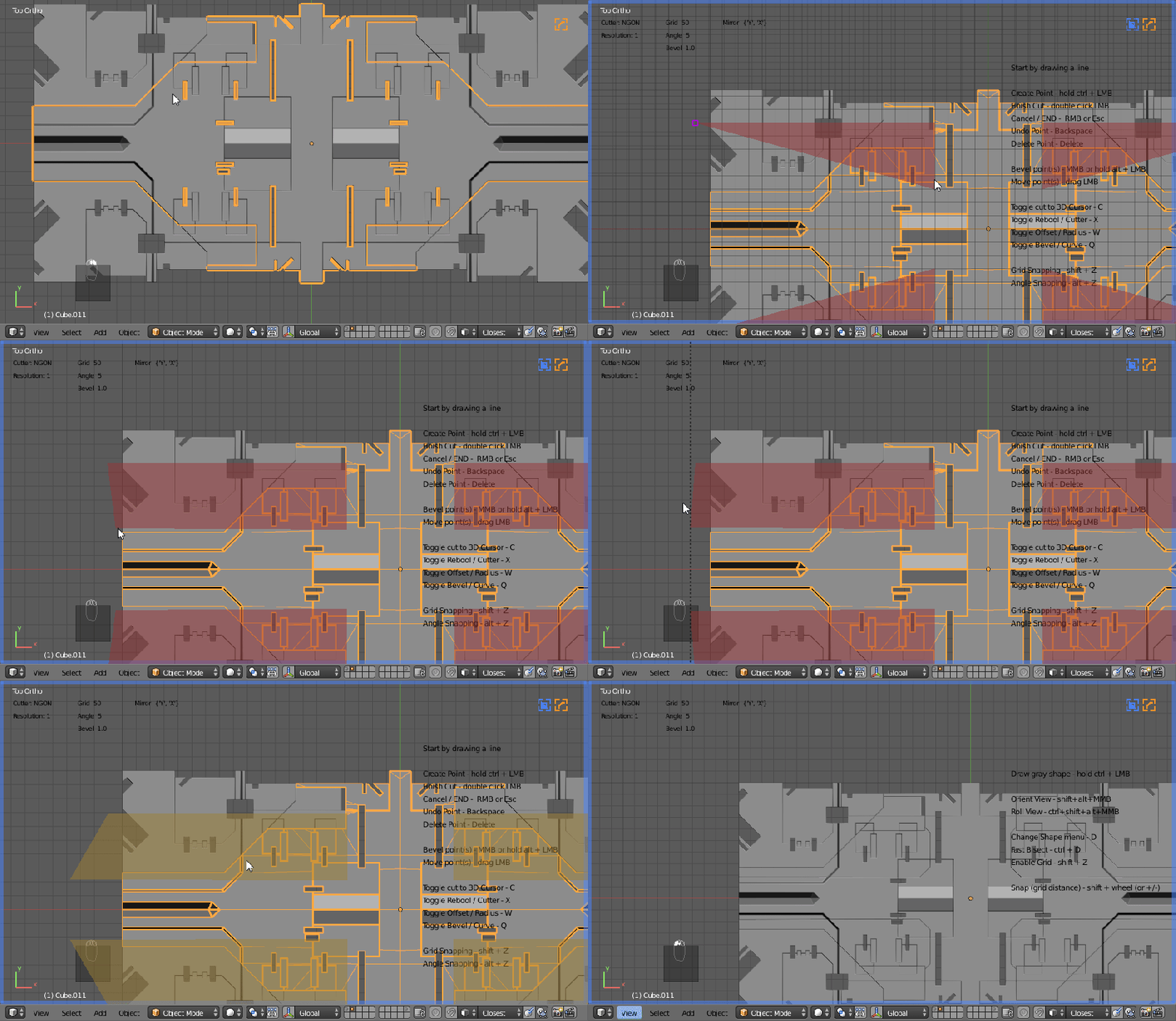
Orthographic Jump while Cutting
There is a pref that will make boxcutter jump into orthographic while cutting. This is useful for situations where numpads aren’t available and perspective cutting is not desired.


Notice that for every cut the view is jumped into ortho. Making it much more predictable. This drove me crazy when using Boxcutter on a laptop.
Hotkey / Color Coding Tab
Boxcutter now has a hotkey tab. In addition to hotkeys there are also UI prefs for color coding your cutting workflow.

This has become a common trend with our tools.

Also you can set a color for any alternate shape.
The defaults are as follows.
Red – cut (normal)
Yellow – slice (X)
Gray – null box (no selection / can also be toggled with A)
Blue – Edit Mode Knife (edit mode)
Purple – thickness slice (Z)
Region Respect
Alt + W starts Boxcutter. However now it loads up in the correct 3d view.
alt + ctrl + Q – quad view.


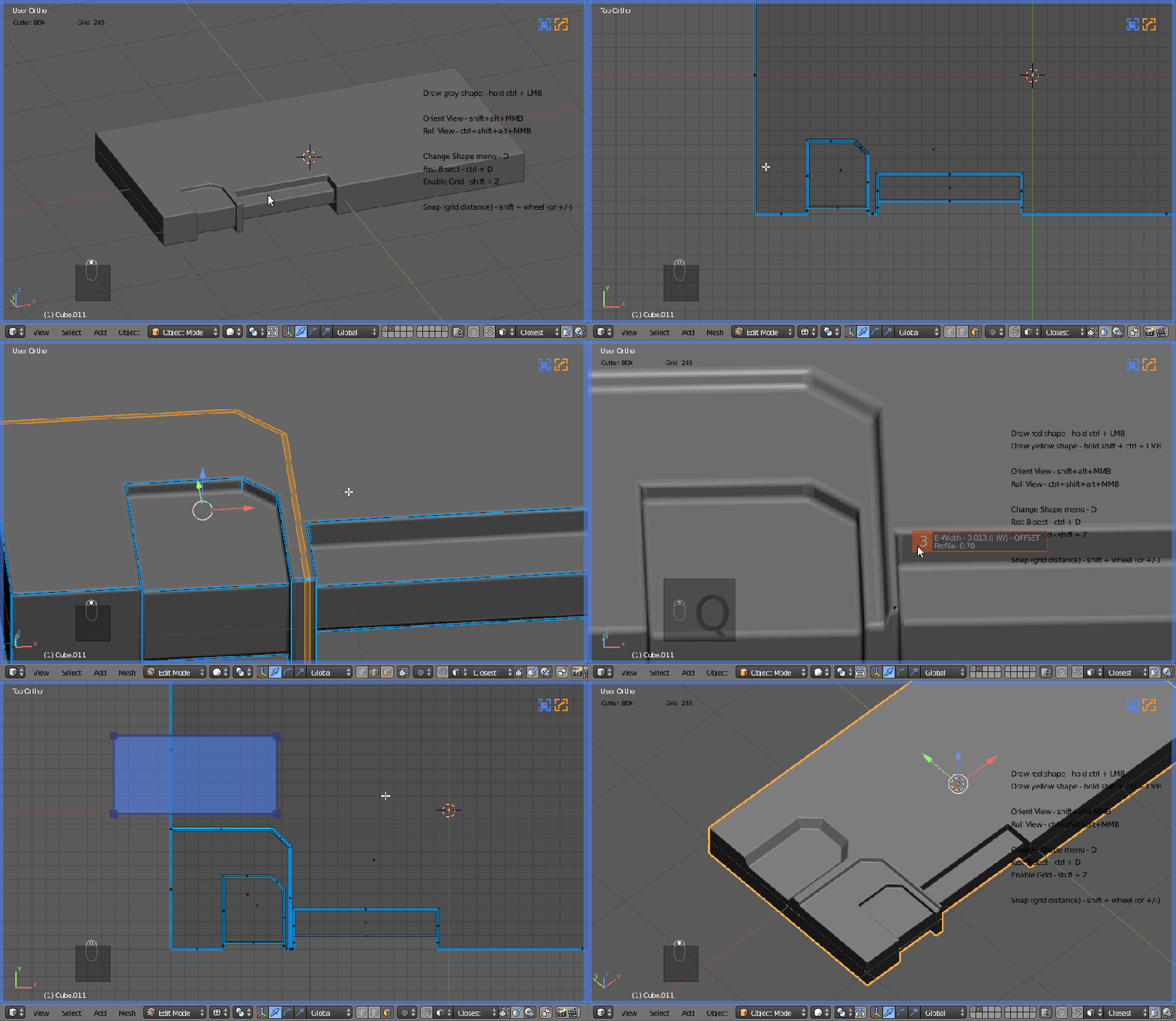


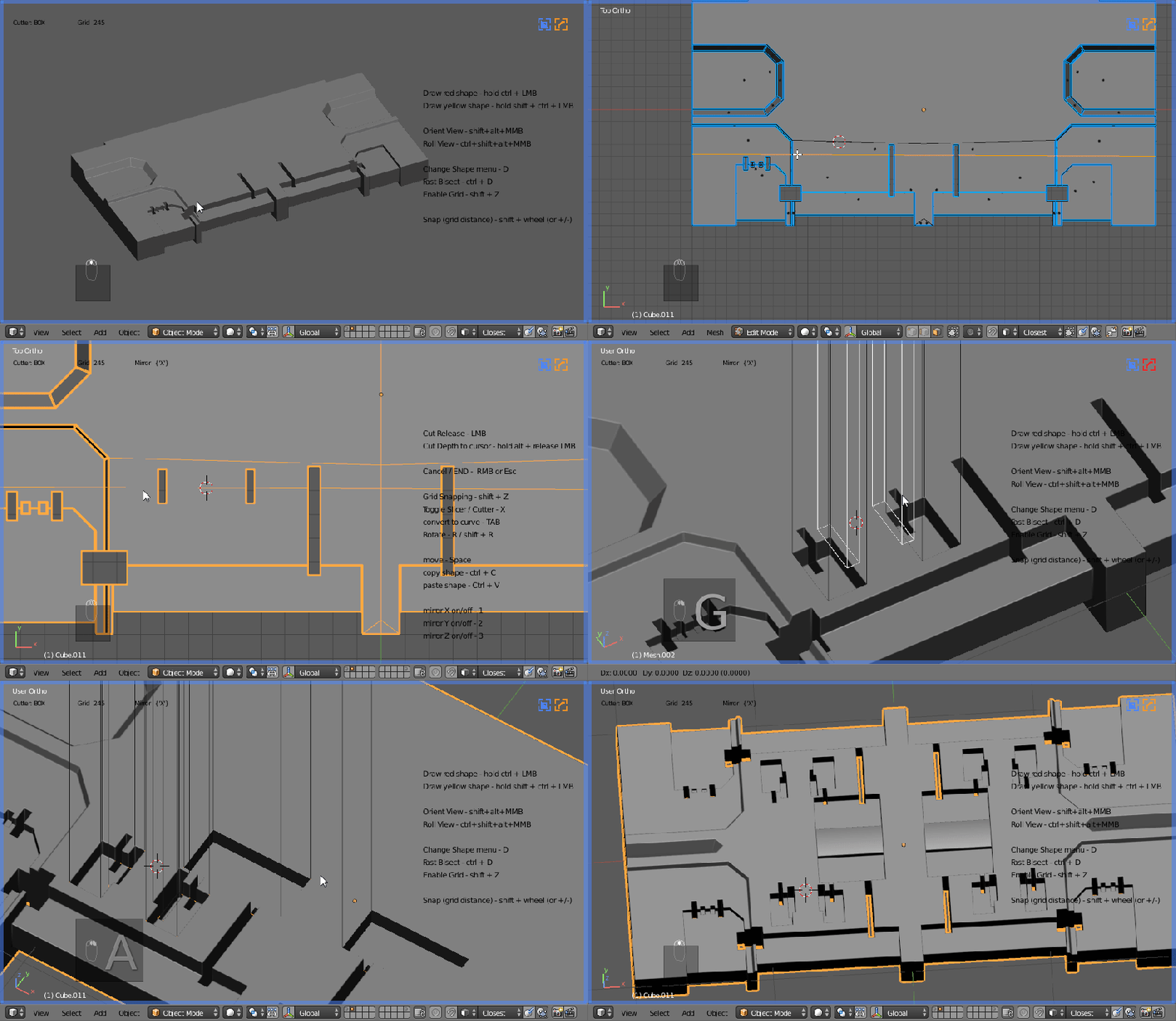


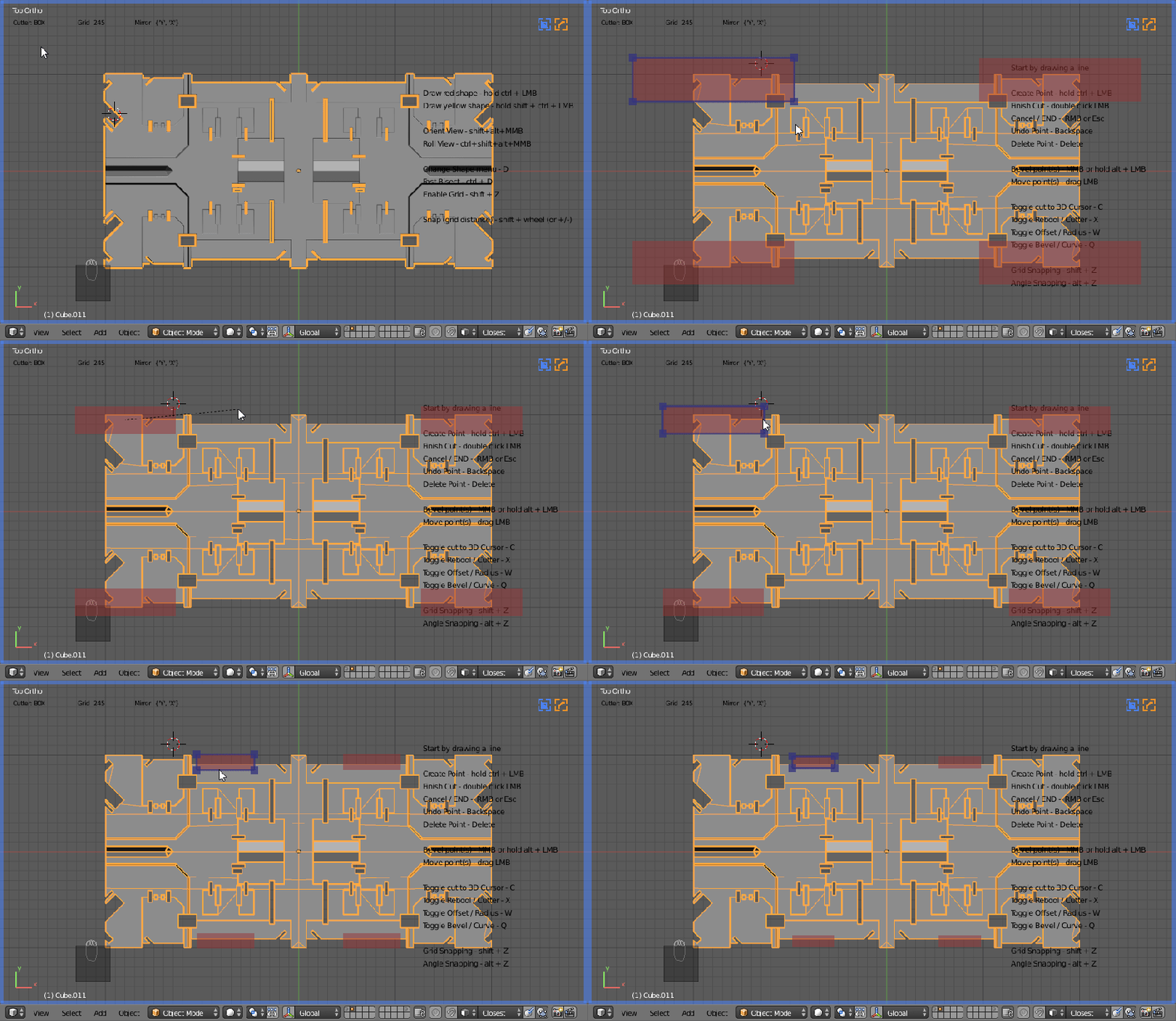
 From Imagination To Creation